
Ulasan Asus ROG Strix XG129C
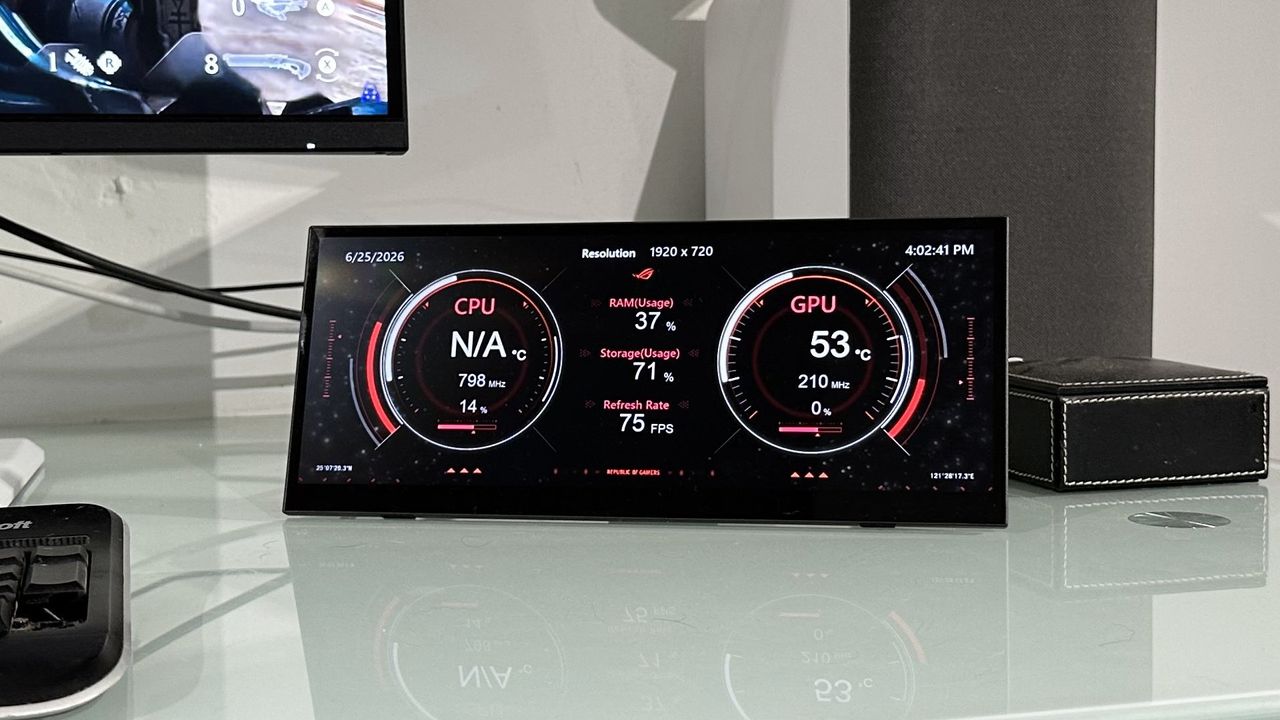
You can't have too many screens. That's pretty much been the guiding moral in my life. Enter the new Asus ROG Strix XG129C and a minor existential crisis. This is a screen, but I have to ask—I can't believe I'm saying this—is there any real point to it?
For starters, this "gaming monitor" (Asus' words, not mine) measures just 12.3 inches. So, it's pretty puny. Actually, it's worse than that. It sports an ultra-wide 24:9 aspect ratio and thus isn't even as big as those 12 inches might imply. In terms of vertical viewable screen height, we're talking sub-4.5-inch.
But here's the thing. While I came in decidedly sceptical about the Asus ROG Strix XG129C, this isn't a proper monitor. It's a device for keeping track of, say, your PC's operating status or providing space for some supplementary application controls. Somehow, I ended up quite liking it. And not just because I'm a total sucker for screens. But more on my journey in a moment. First, let's cover off the core speeds and feeds.
Screen size | 12.3-inch |
Resolution | 1,920 x 720 |
Brightness | 300 nits |
Response time | N / A |
Refresh rate | 75 Hz |
HDR | No |
Features | IPS panel, 1x USB-C with DP and DC-inl 1s USB-C with DP and 30 W PD out, HDMI |
Price |
✅ You want a sidekick display for keeping track of PC or social media: This isn't a proper PC monitor. But it is pretty nifty as a secondary display for status tracking.
❌ You want bang for your buck: You can buy a full 27-inch IPS 1440p gaming monitor for less money.
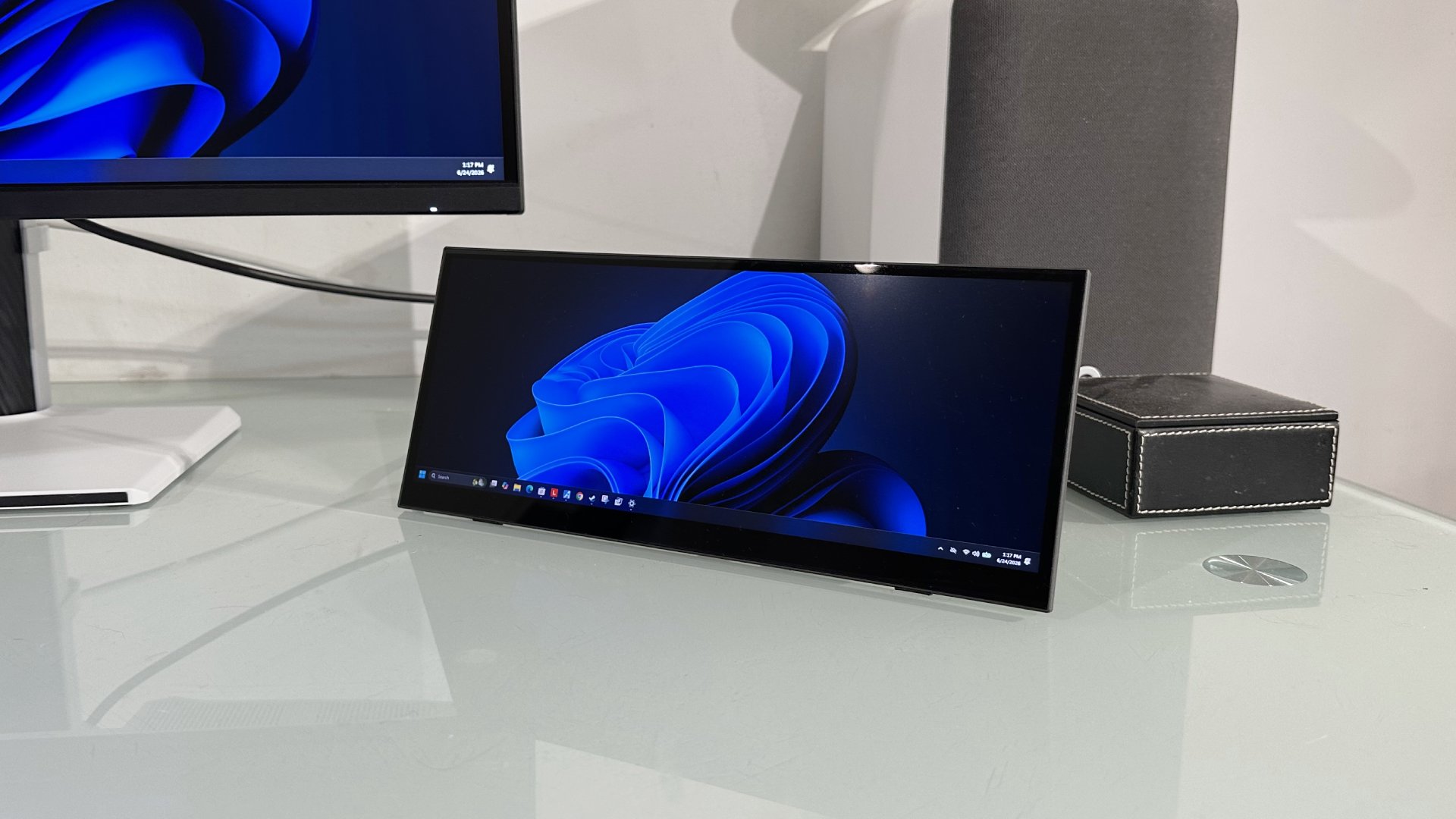
The 24:9 aspect translates into a native resolution of 1,920 by 720 pixels and a pixel density of 166 DPI, the latter being about the same as a 27-inch 4K monitor. So, it's pretty crisp.
It uses IPS panel tech and tops out at 300 nits for brightness and 75 Hz in terms of refresh rate. Oh, and quite importantly, it supports capacitive 10-point multi-touch input. For the record, the touch functionality works essentially out-of-the-box provided you are connecting via USB-C.
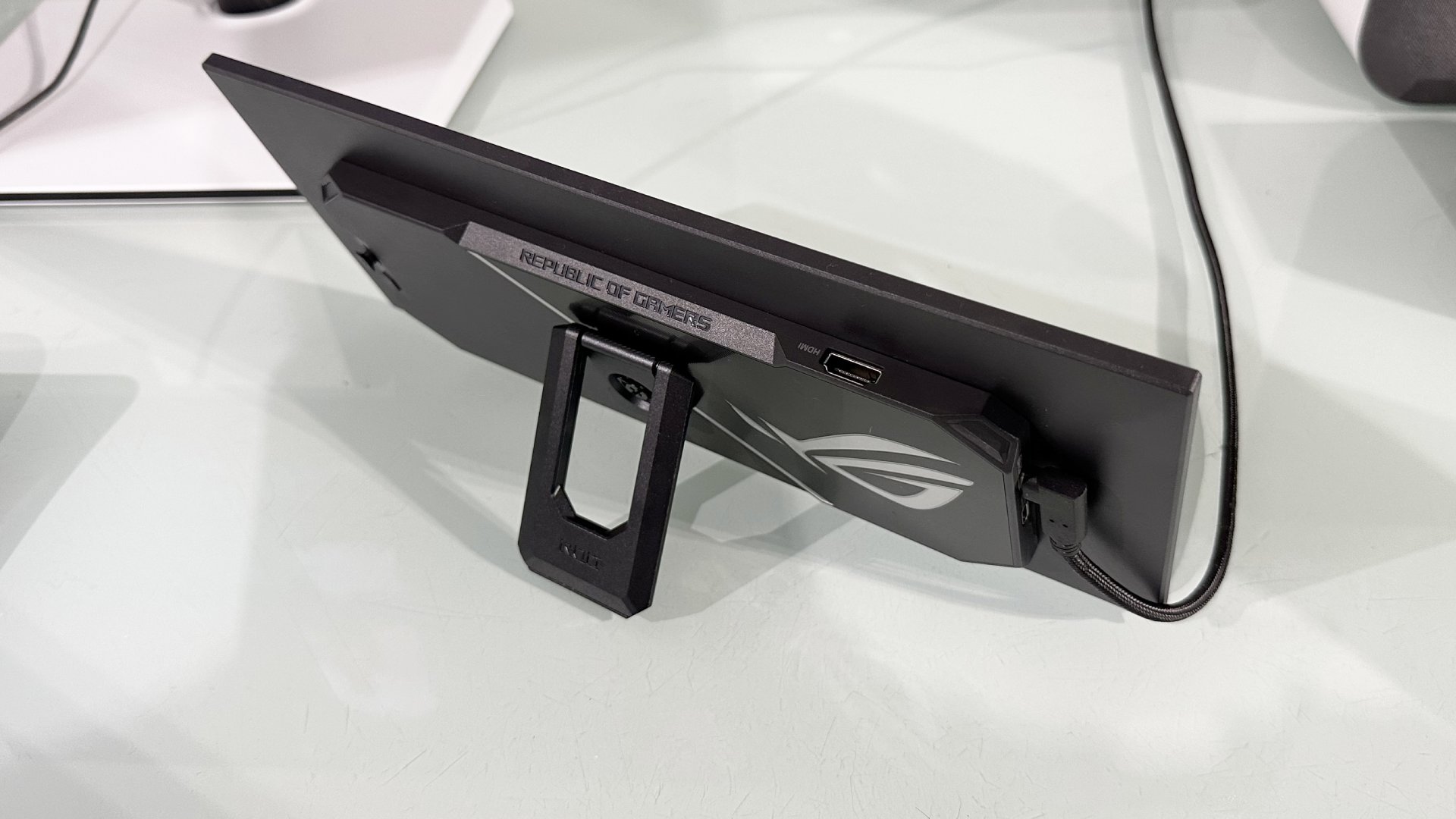
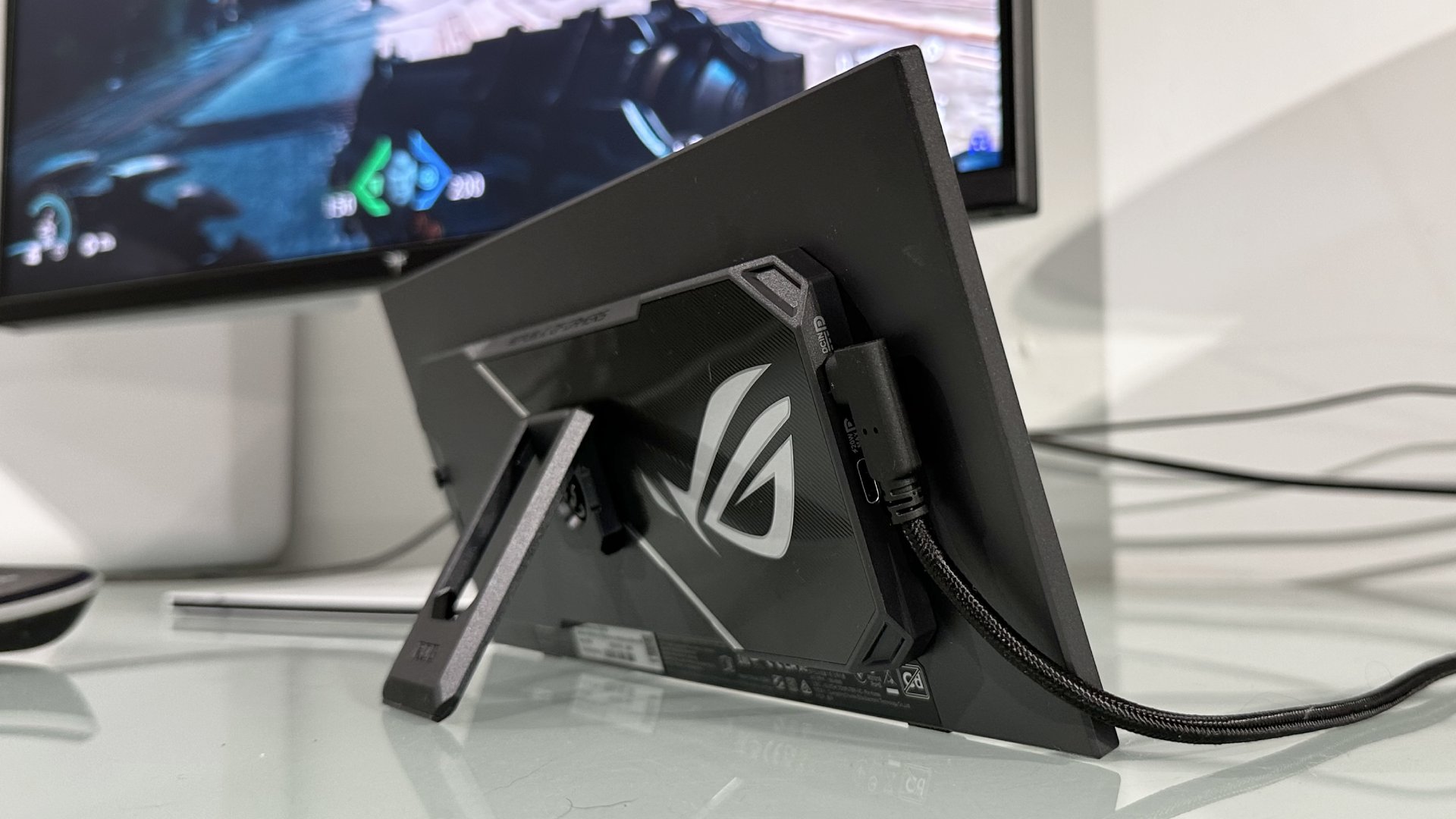
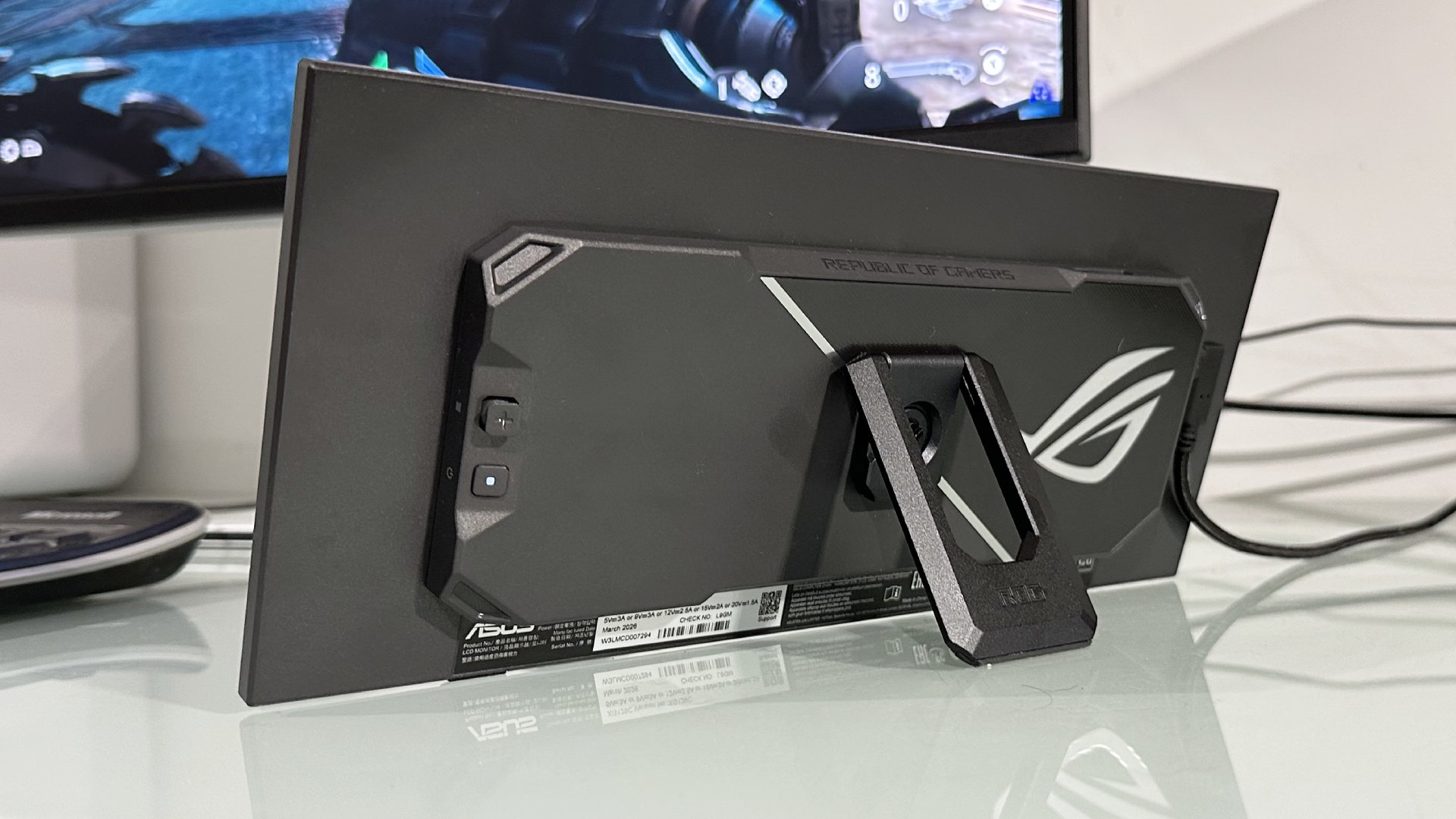
Speaking of which, there are two USB-C ports. Both will drive the display, while one doubles as power in and the other supports 20 W of power out. So you can, for instance, connect via a single USB-C cable to both drive the display and power it, which is the ideal in terms of cable management.
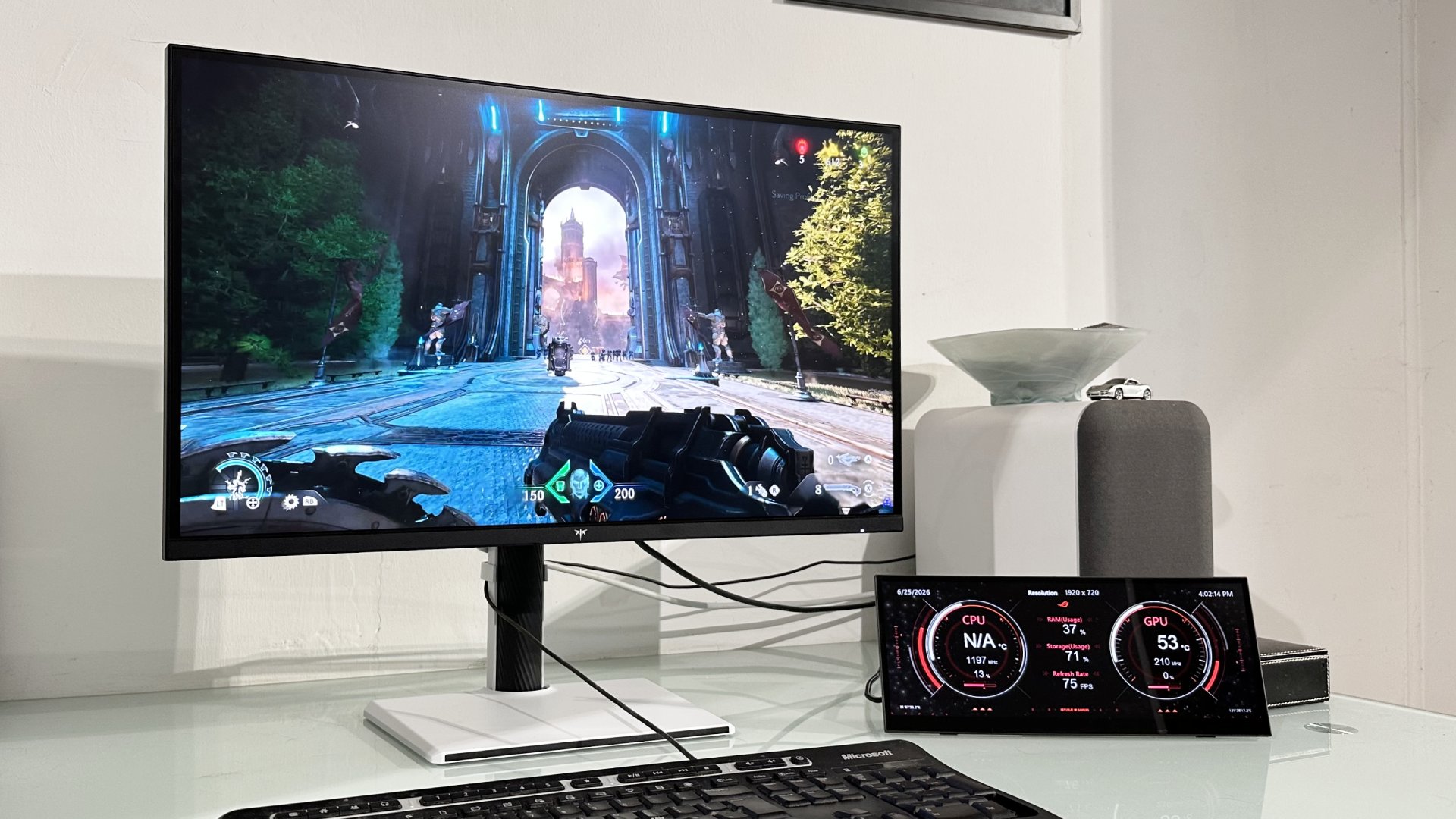
That's easy from a laptop, but less of a given with a desktop PC. There are desktop graphics cards with USB-C out that support up to 30 W of power delivery and so would be able to power the display and drive it. But that setup would not support the touch functionality, which requires data passthrough.
So, for a true single-cable solution on a desktop, it all gets a bit complicated. In theory, you could do it with a motherboard that supports Thunderbolt and DisplayPort passthrough from the iGPU and thus have the Asus ROG Strix XG129C running from the iGPU in your CPU and your main monitor running off your graphics card.
I understand this setup is supported, for instance, on Intel Z890 motherboards, again in theory. In practice, results seem to vary and there can be issues with the Thunderbolt port supplying sufficient power. In a worst case scenario, then, you might need to use the HDMI port for the video signal, one of the USB-C ports to power the display and another to send touch data to your PC, which is pretty messy.
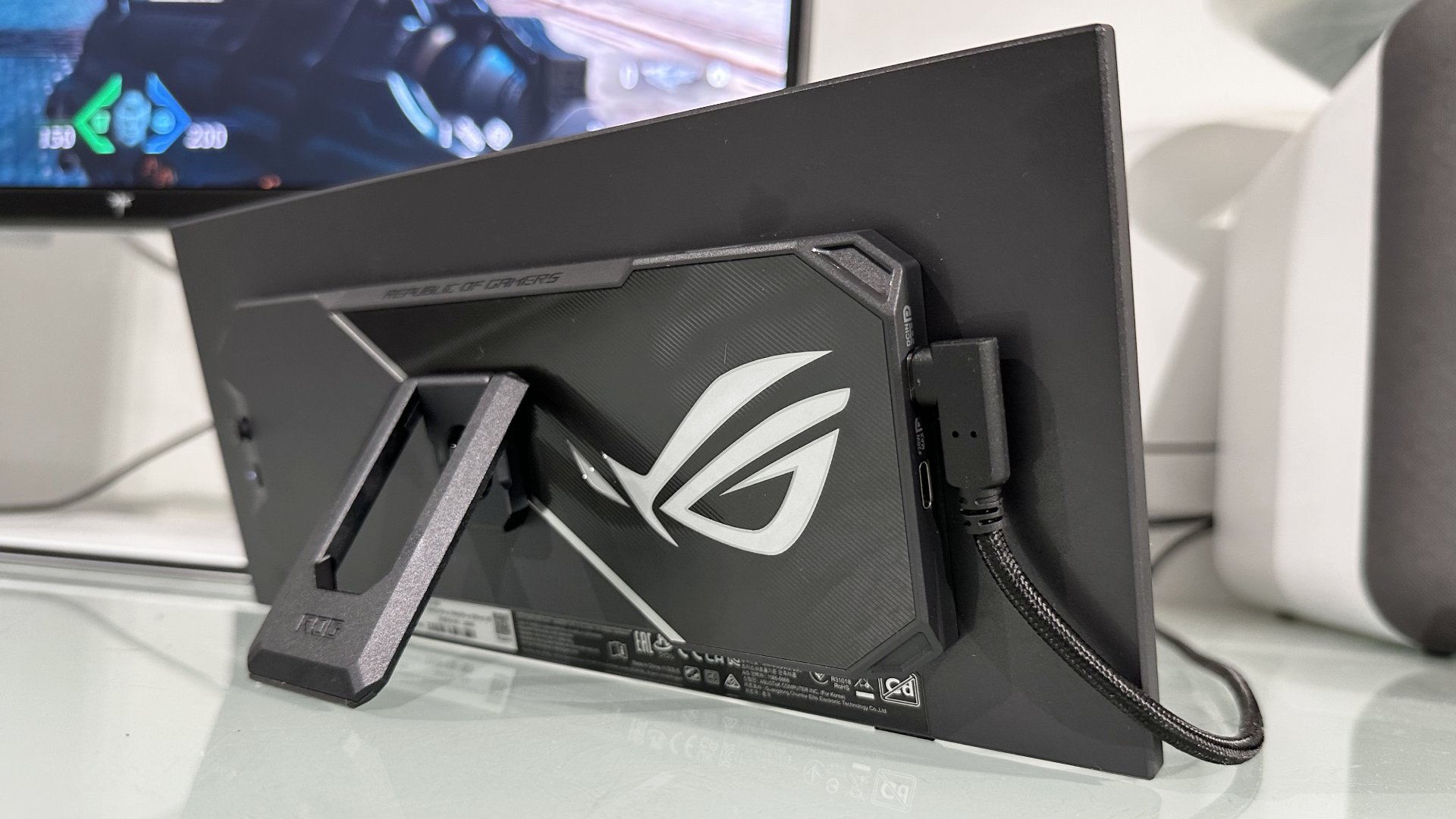
But I think a decent chunk of users will be able to get it working with two of the three ports hooked up. If one of those is the HDMI port, you'll then have one cable coming out of the side, one out of the top. It would have been tidier if Asus had located all the ports on one side. Never mind.
It would have been tidier if Asus had located all the ports on one side.
That ergonomic glitch aside, this is otherwise a really nicely built display. It feels high quality and the screw-in kick stand is very sturdy and capped with a rubberised foot to provide grip, as is the base of the display itself.
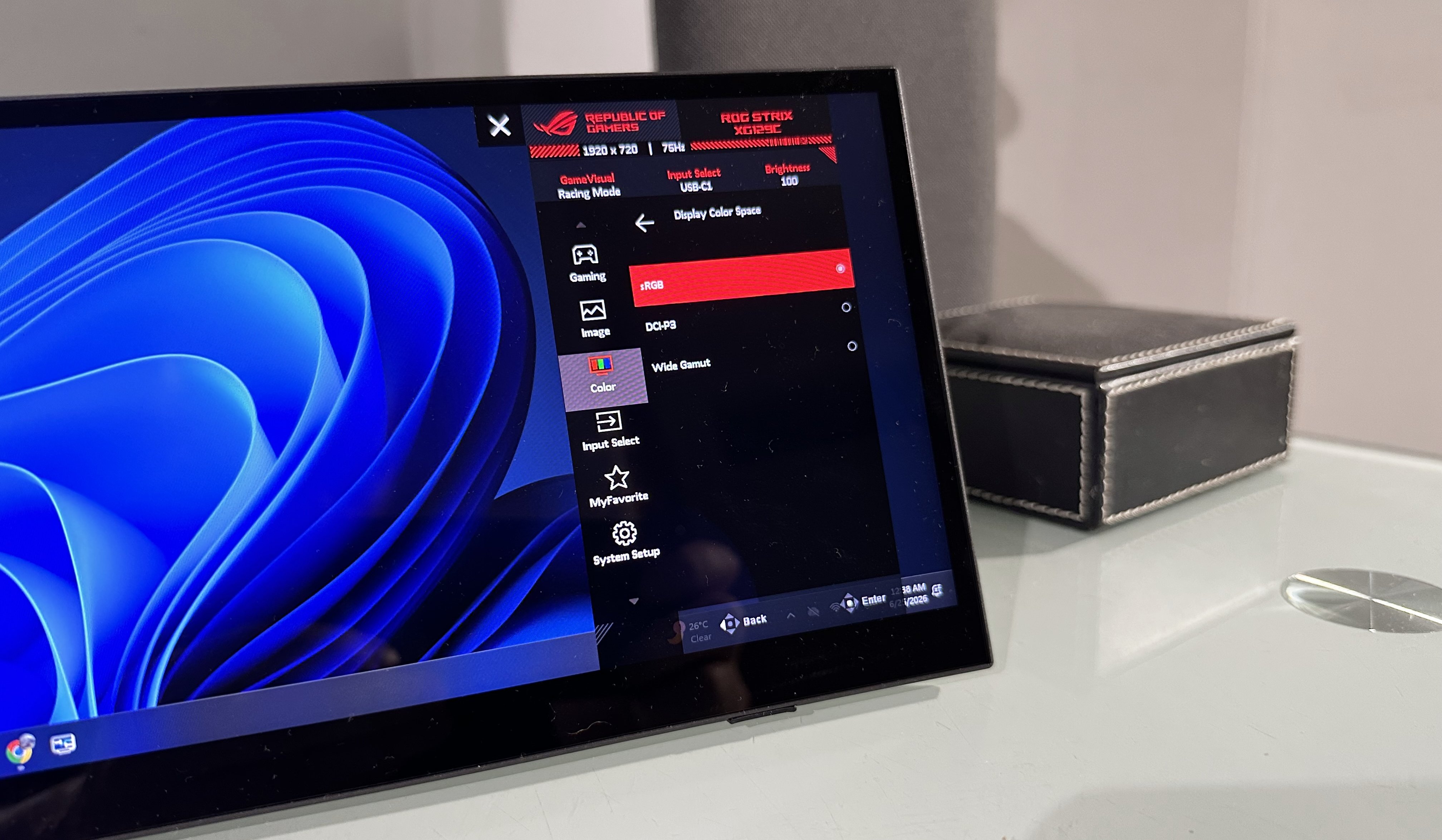
You also get a proper OSD with a joystick controller and full set of features, just like a conventional Asus monitor. What's more, you can control the OSD with the touchscreen input, which is a nice, well, touch.
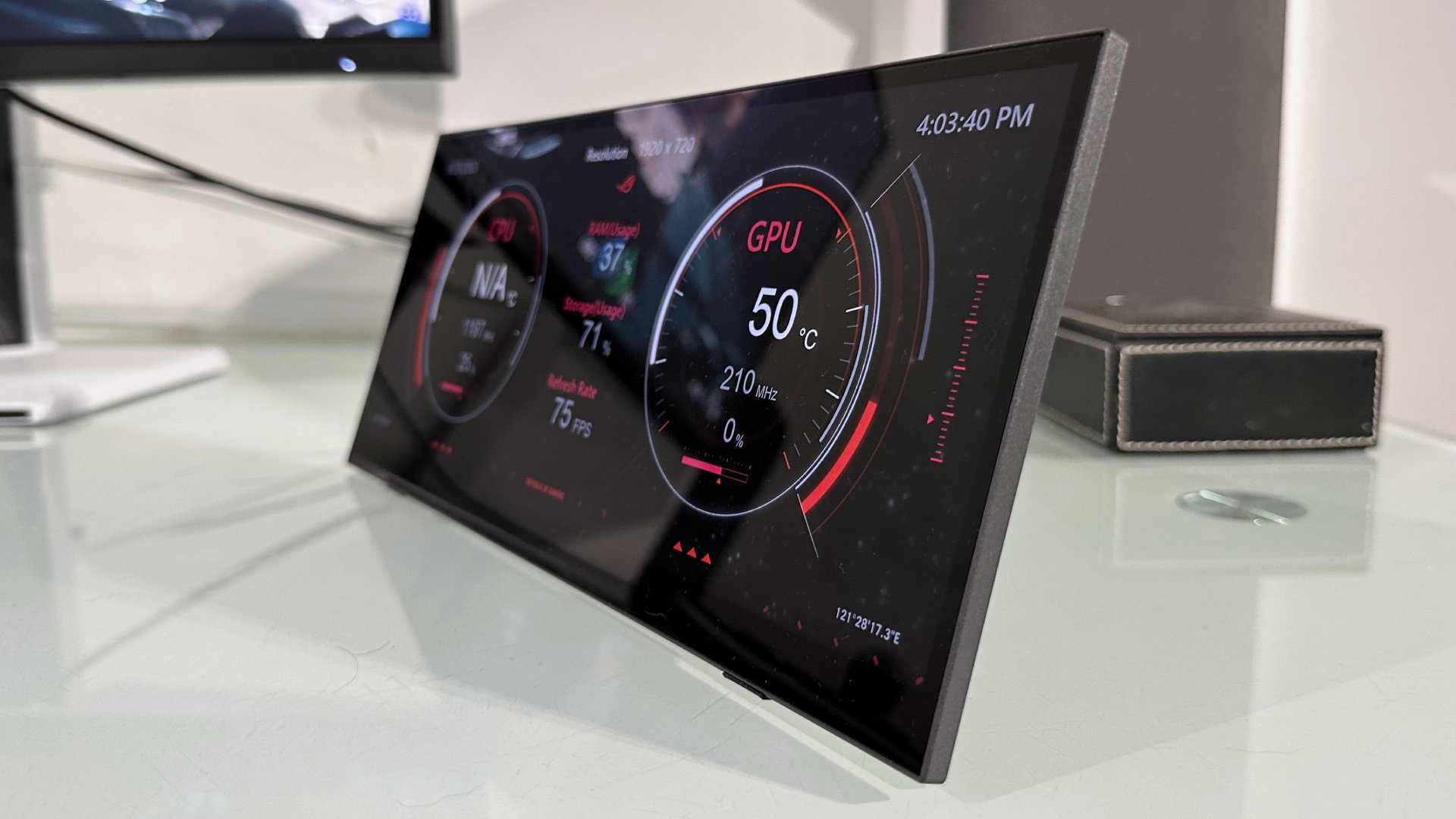
If that's the features covered, what is the Asus ROG Strix XG129C like in use? Asus bundles a year's subscription to an OEM version of Aida 64, so you've got something to play with immediately.
That's handy, because it would be a nightmare to configure the standard version of Aida 64 to fit this display perfectly. As it is, you can use it to track CPU and GPU operating speeds and temps, storage use, that kind of thing. You'd have thought a permanent license would be part of the deal, but at least you have something to run immediately.
Outside of that, your mileage will vary depending on your preferences. You could use this display to do anything from keep track of social media feeds or work collab' platforms like Slack while you game, to using it to situate secondary controls or a timeline for video editing.
Much will depend on the exact applications you use and what kind of tools and controls they offer, how much configurability they support and so on. But what I would say is that, for this display to really deliver, those tools and controls need to be touch friendly.
So many applications are either poorly or not at all optimised for touch.
That's generally quite a big ask, given that so many applications are either poorly or not at all optimised for touch. Ironically, that includes Asus' own Display Widget Controller app, which really doesn't work at all well on this display. Whatever, it's the ability to use the touch interface, as opposed to needing to "mouse over," and the immediacy that offers, that is most compelling.
Of course, that in itself can create problems with application focus, in-game. And there's no doubting the Asus RoG Strix XG129C works most reliably and consistently as a status display rather than something you directly interact with. But the shortcomings there are largely down to how Windows operates, rather than the display itself.
In the end, this little display is very much in the nice-to-have rather than must-have category. It's also the sort of device where your benefit from and use of it will depend on a whole range of factors.
Some people may be able to get quite a bit of value out of it as a touch device for controlling application tools and menus, such as video, image and music editing. But I would advise caution in that regard. You'll need to do a little homework to see what really works. Don't assume too much.
You'll need to do a little homework to see what really works. Don't assume too much.
On the other hand, if you just like the idea of a small secondary display for keeping track of your PC's hardware status or viewing work and social feeds, you can be more confident that the Asus ROG Strix XG129C will deliver.
What's more, as someone who prefers a single ultrawide monitor to a pair of more conventional 16:9 panels, what this mini monitor offers is a way to have the status-tracking functionality that a second screen offers, but keep it small and ergonomically tidy. I don't need a huge screen to watch a bit of Slack or keep track of emails arriving in the background, in other words. The Asus ROG Strix XG129C does that kind of job rather nicely.
Which brings us to the final important factor, namely price. At $199, the Asus ROG Strix XG129C is either pretty reasonable for such a specialised device or crazy money given what 200 bucks buys you these days in the monitor market. This year during Amazon Prime week, I found some KTC 34-inch ultrawides for barely over $200, while $250 will get you a 27-inch 4K dual-mode panel and $150 a decent 1440p panel. It's all a bit bananas.
In that context, the Asus ROG Strix XG129C is definitely a luxury item rather than a value proposition. You'll certainly have to specifically want a smaller, and in some ways less functional, screen to choose it over a 27-inch 1440p panel for less money.
But, personally, I actually might. I already have a large ultrawide for my primary viewing. I don't want another full-sized screen hanging miles off to the side. This nifty little accessory display can sit below my main monitor and would be just the thing to have running discretely, keeping me up to date. I've just got to decide if that's worth $200 to me…
Sumber: PC Gamer